Desktop application
You can easily transform your cluster web application into a lightweight desktop app for Windows, macOS, and Linux without rewriting your existing code.
This approach delivers a native-like experience with tighter integration into the operating system, all powered by Tauri.
Tauri embeds your web application inside a native shell, providing system-level features that a regular browser cannot access. This is what we call a hybrid application.
The native layer is written in Rust, and the web app can:
- Execute Rust commands (functions).
- Subscribe to events emitted by the native layer.
Prerequisites
Before getting started, make sure your environment is correctly configured:
- Install the Desktop development with C++ workload in Visual Studio Installer.
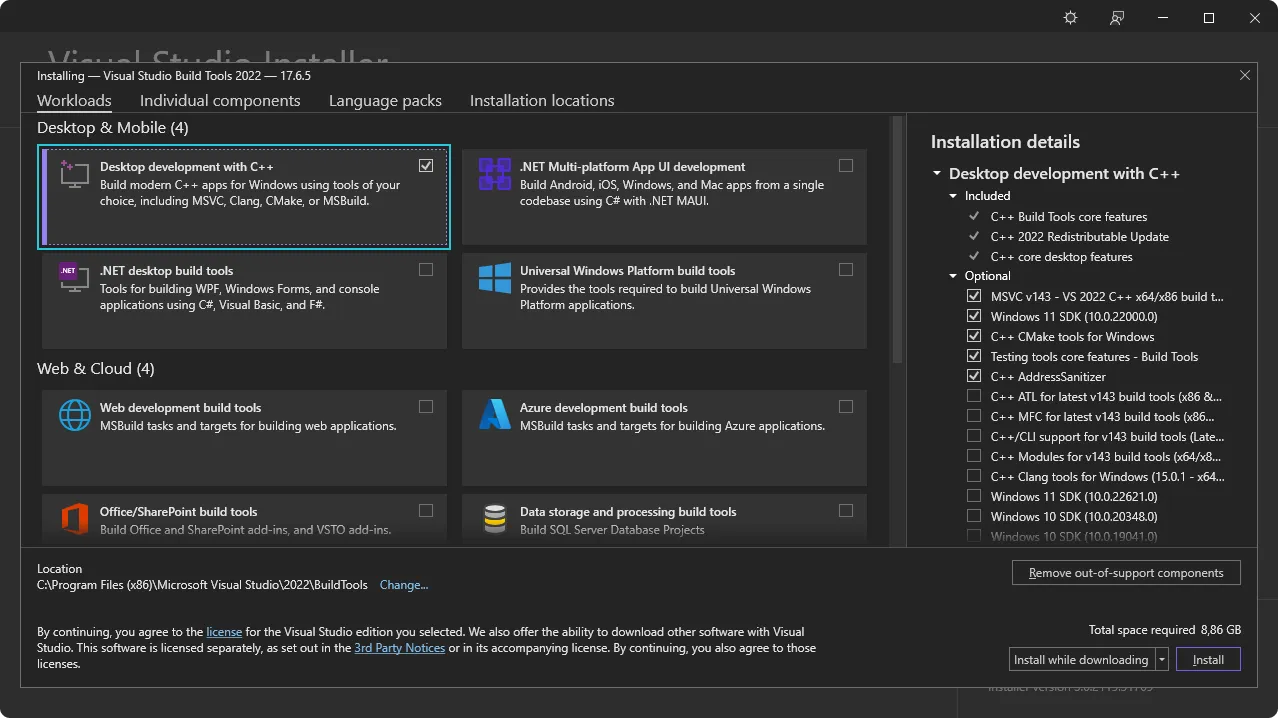
- Install Rust.
Getting started
Instead of creating a new Tauri project from scratch, we recommend reusing the preconfigured template provided in the Technical Demos cluster.
You can find the source code here.
Project structure
.
├── capabilities/
│   └── default.json
├── icons/
├── src/
│   ├── lib.rs
│   ├── main.rs
│   └── print.rs
├── .gitignore
├── build.rs
├── cargo.lock
├── cargo.toml
├── tauri.conf.json
├── tauri.prod.conf.json
Structure overview:
capabilities/→ default location for Tauri capability files.icons/→ application icons.src/main.rs→ main entry point (do not modify).src/lib.rs→ Rust logic exposed to the web application.src/print.rs→ print-related commands used in someUserPermissionsUI views..gitignore→ excludes build artifacts and generated files.build.rs→ required build script for Tauri.cargo.toml→ Rust project manifest (similar to a.csprojfile in C#).cargo.lock→ dependency lock file (similar topackages.lock.jsonin C#).tauri.conf.json→ Tauri configuration for development.tauri.prod.conf.json→ Tauri configuration for production (main difference: web app URL).
Running the app
- Start your cluster.
- In the Tauri application directory, launch the desktop app in development mode:
npx @tauri-apps/cli dev
This command builds the native wrapper and opens your web application in a desktop window.
Communication between UI and native code
The UI can interact with the native layer through the SystemEnvironment.HybridApplication static class.
Available methods and properties:
IsActive: Indicates whether the application is running as a desktop app.InvokeAsync: Executes a native Rust command from the UI.AddEventListenerAsync: Subscribes to an event emitted by the native layer.RemoveEventListenerAsync: Unsubscribes from a native event.
Deployment
We recommend following the same deployment strategy used in the Technical Demos project.
Versioning
The desktop application version is independent from the cluster version. You do not need to release a new desktop version for every cluster update — only when the Rust code changes.
The version number is defined in the Cargo.toml file and must be incremented manually, since releases are infrequent.
Bundling
In the release pipeline, an installer is built for each operating system (Windows, Linux, macOS). Once generated, these installers are uploaded to an Azure Blob Storage, where they are made publicly accessible.
Auto update
The desktop app supports automatic updates via the official Tauri updater plugin.
When the app launches, it fetches a file named latest.json containing:
- The latest available version number.
- Download links for each platform installer.
If the version in latest.json is newer than the installed one, the corresponding installer is automatically downloaded and executed.
Signing updates
Tauri's updater needs a signature to verify that the update is from a trusted source. To sign your updates you need two keys:
- The public key, which will be set in the
tauri.conf.jsonto validate the artifacts before the installation. It can be safely shared. - The private key, which is used to sign installer files. Never share or lose this key, as it is required to sign all future updates. It should be securely stored in your pipeline secrets.
Generate both keys with the following command:
npx @tauri-apps/cli signer generate
In the release pipeline, after the installers are uploaded to Azure Blob Storage, the latest.json file is generated and uploaded to the same storage container.