Troubleshooting deployed environment
This article presents some methods to facilitate diagnostics in a deployed environment.
Monitoring Redis instance
The following Powershell command will display all commands issued to the Redis instance :
kubectl exec --namespace <your-namespace> -it $(kubectl get pod -l app.kubernetes.io/name=redis -o jsonpath="{.items[0].metadata.name}") -c redis -- redis-cli MONITOR
It is then possible to see for example :
- State store values get and set
- Notifications content (SignalR)
Monitoring RabbitMQ instance
By default, you can't see RabbitMQ message contents without activating some plugins.
To do so, you can use the following commands (Powershell) :
kubectl exec --namespace <your-namespace> -it $(kubectl get pod -l app=neos-dapr-rabbitmq -o jsonpath="{.items[0].metadata.name}") -- rabbitmq-plugins enable rabbitmq_management rabbitmq_tracing
This will activate the management and tracing plugins.
To access the management UI from your local machine, you can set a port forward using this command :
kubectl port-forward --namespace <your-namespace> deploy/neos-dapr-rabbitmq 15672:15672
You are now able to log in to the management web UI at http://localhost:15672.
Default credentials are guest:guest.
To enable tracing, first go to Admin UI :
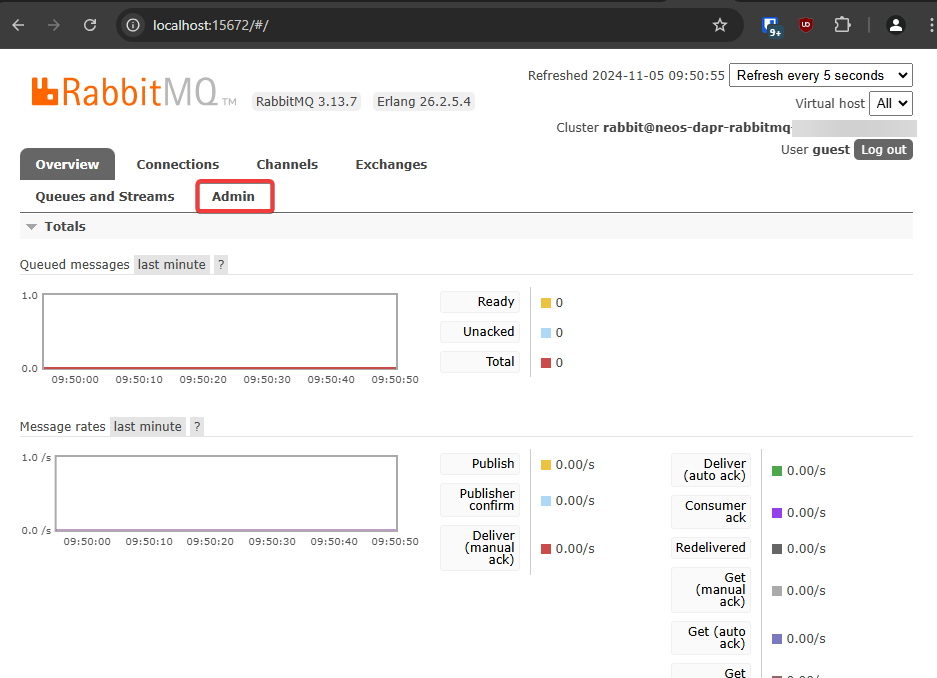
Then go to the Tracing UI :
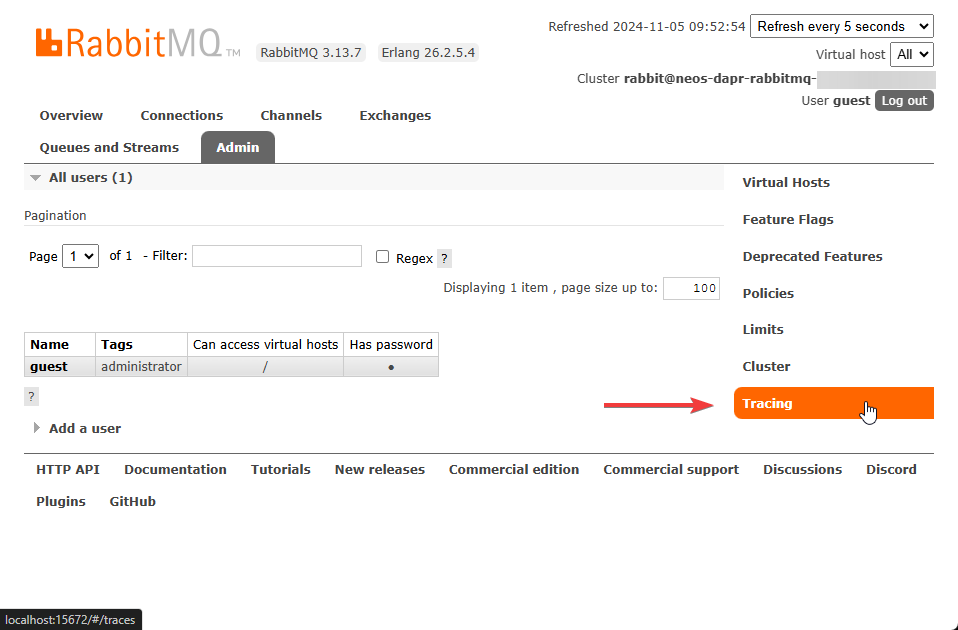
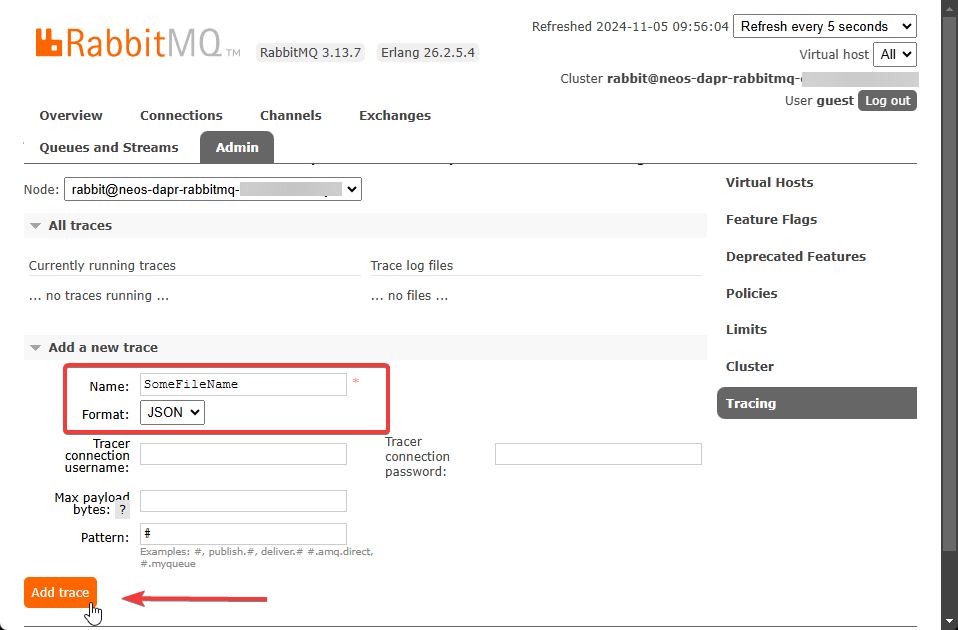
You can then choose a filename and format in which the traces will be saved :
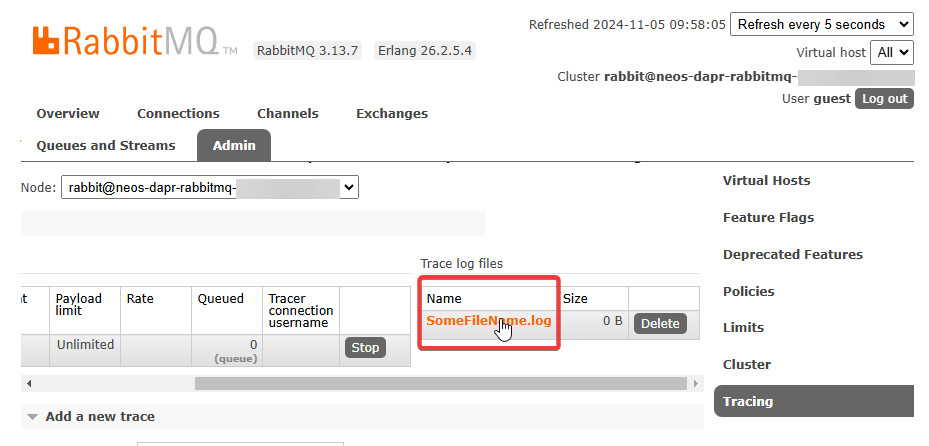
Finally, you can download the file by clicking on it :
Don't forget to delete the port forward and disable the plugins after use (or restart the pod):
kubectl exec --namespace <your-namespace> -it $(kubectl get pod -l app=neos-dapr-rabbitmq -o jsonpath="{.items[0].metadata.name}") -- rabbitmq-plugins disable rabbitmq_tracing rabbitmq_management
FAQ
Custom gateway pod fails to start
If you use a custom tenant selection in your deployment, the custom image has to be built from the same version as the deployed Helm chart.
If there is a version mismatch, the gateway pod will fail to start until it's configuration is fixed.
Backend / Task runner pods of a cluster fail to start
When a backend or task runner pod is created, it will check that the name and the version of the cluster used to build the images match with the one provided in the Helm values file.
If there is a name / version mismatch, the pod will fail to start until it's configuration is fixed.
The generated report doesn't include my font in a deployed environment.
Please see this article for more detail on how to configure fonts for production.
I can't modify a generated report file in a report interceptor.
If your report interceptor fails when calling UpdateContent with a UnauthorizedAccessException exception, you may need to set reportingTempDirectoryAccessMode to ReadWrite in your cluster backend Helm configuration.
The report viewer is too long to display.
By default, only necessary fonts are embedded in the report as ResourceFont. This is called the Embed mode and is the recommended setting unless your report uses a lot of different fonts.
Using many fonts (let say more than 30 different fonts) with the default Embed mode can cause performance issues on the client side. For that particular scenario, and you should consider switching to the Full mode which performs better in this particular scenario.
In order to change the font loading mode for specific reports, you can configure the report server with the Reporting:ReportViewerFontsLoadingModes array property.
Each entry should have ReportName set to the report name and FontsLoadingMode set to one of the following values :
Embed: Embed necessary fonts in the report. This mode is recommended by default unless the report uses lots of different fonts.Full: Load all fonts installed on the system. This mode is suitable in production environments where the report uses many different fonts but you should adapt the report server image so only necessary fonts are installed on the system.None: Do not load any fonts. This will use fonts of the user machine if available.
Example : Load all system fonts only for the ReportFontsList report.
Reporting__ReportViewerFontsLoadingModes__0__ReportName=ReportFontsList
Reporting__ReportViewerFontsLoadingModes__0__FontsLoadingMode=Full
As a developer, in your PowerShell profile, you can use:
$i = 0
$name = 'MyReportWithoutAnyEmbeddedFonts'; $fonts = 'None'
Set-Item -Path "Env:Reporting__ReportViewerFontsLoadingModes__${i}__ReportName" -Value $name
Set-Item -Path "Env:Reporting__ReportViewerFontsLoadingModes__${i}__FontsLoadingMode" -Value $fonts

$i++
$name = 'MyOtherReportWithoutAnyEmbeddedFonts'; $fonts = 'None'
# etc.
The report viewer behaves unexpectedly when the reporting service runs with multiple replicas.
The Stimulsoft viewer cache mode can be configured from the environment or appsettings.json.
The global default is configured with Reporting:ReportViewerCacheMode.
Per-report overrides are configured with Reporting:ReportViewerCacheModes, where each entry contains:
ReportNameCacheMode
Supported CacheMode values in phase 1 are:
NoneObjectCache
ReportName supports exact names as well as * and ? wildcards.
Exact matches win over wildcard matches. When multiple wildcard rules match, the first matching rule is used.
Example showing how to disable the caching for one single report:
Reporting__ReportViewerCacheModes__0__ReportName=ReportWithoutViewerObjectCache
Reporting__ReportViewerCacheModes__0__CacheMode=None
Example showing how to disable the caching for all reports except those that match a given pattern:
Reporting__ReportViewerCacheMode=None
Reporting__ReportViewerCacheModes__0__ReportName=*Cached*
Reporting__ReportViewerCacheModes__0__CacheMode=ObjectCache
The cache mode applies to the online report viewer only.
Rolling back to a previous release
If you encounter any issues with a new release, you can roll back to the previous version using Helm rollback command. Please see the install/upgrade article for more details on how to perform a rollback.
Note
Rolling back a release will only revert the changes made by the Helm release and will not affect multitenant configurations or other resources outside the scope of the Helm release. If you have a multitenant cluster, you may need to use the tenant manager to switch back the tenants to the previous version of the cluster after rolling back the Helm release. Please check the multitenancy documentation for more details.