Adding a data source
The first thing to do when creating a new report is to indicated the source of the data it will display.
Warning
You can only add ONE data source to a report.
To do so :
- Click
New Item - Click
New Data Source ....
TheSelect Type of Connectionmodal opens. It displays the entity views that can be used as the data source for the report.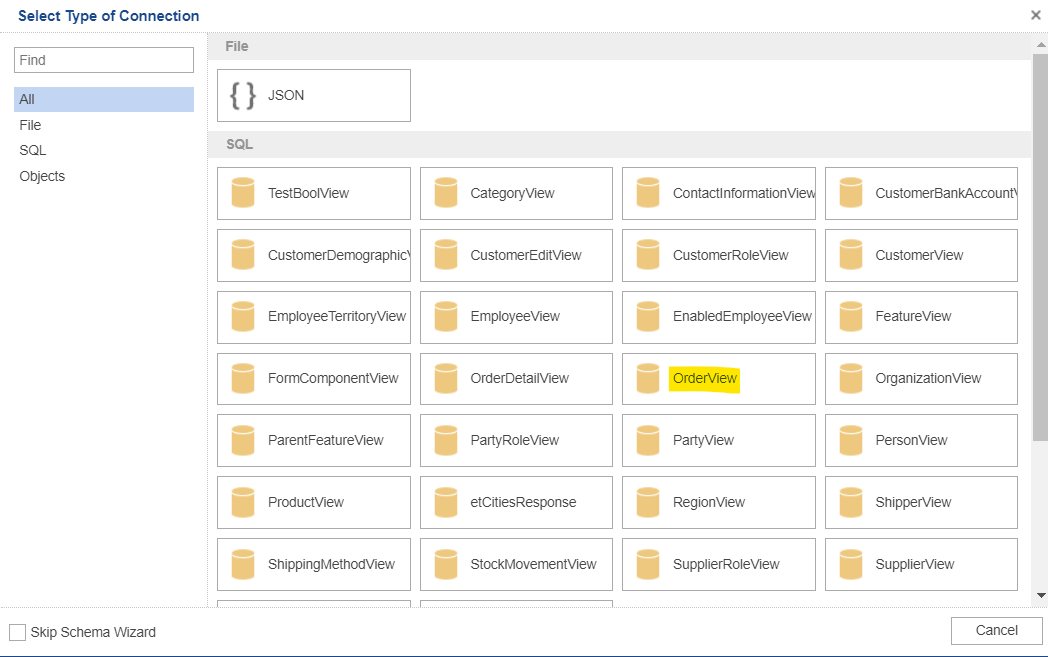
- Select the desired entity view.
The
New Connectionmodal opens. You can customize the name and alias of the connection if needed.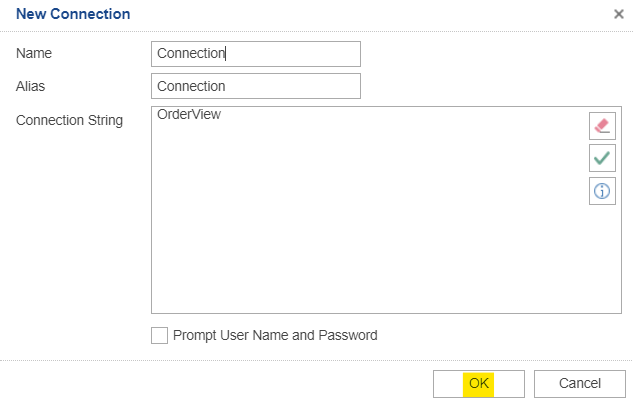
- Click
OK.
TheSelect Datamodal opens. Here you can select entity view properties that the report will be able to display.
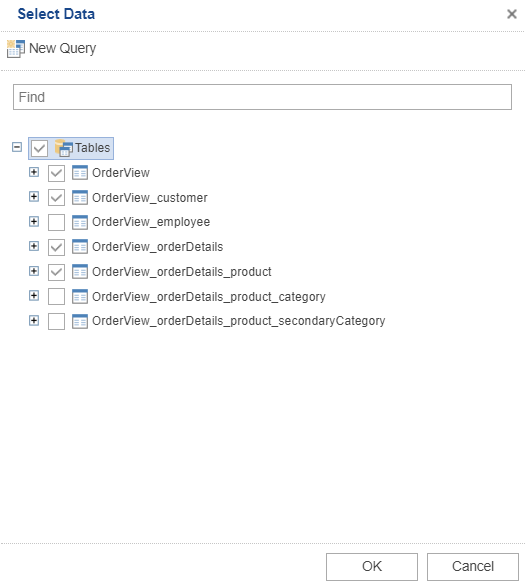
- Select the entity views or just some of their proproperties as needed
- Click
OK
Once the datasource is in place, you can control how Neos Studio retrieves data for preview and portability exports. For that workflow, see Configure preview and export in the report designer.